
Brochure Mockup
Upload your brochure design, choose the folds, size and view, and download a realistic mockup image.
Brochure Mockup is a free tool that shows your brochure design as a realistic printed piece. You can display it opened out flat with its fold zig-zag, as the inside spread, or closed and standing on a table. It runs in your browser, with no sign-up and no paid option, so you can picture a tri-fold or bi-fold brochure for a listing, portfolio or post before printing.
You upload one required image for the outside spread and can add an optional image for the inside. You choose the sheet size, paper colour, and background scene, then download the result as a PNG or JPG. Your design file is never uploaded, and nothing is sent to a server. The scene adds shadows, paper grain, and lighting, but your design pixels are not changed, so the same settings always give the same picture.
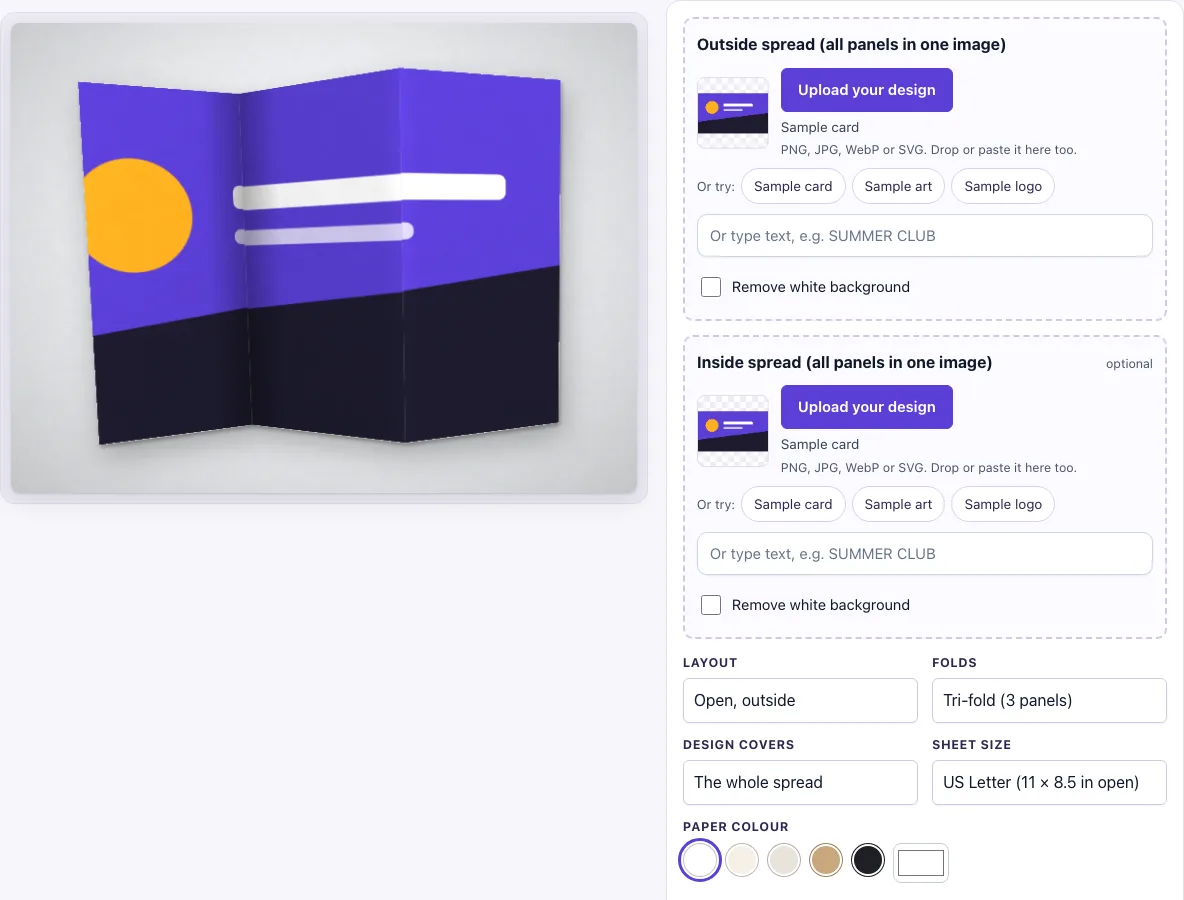
How to use the Brochure Mockup
- In the Outside spread slot, click Upload your design, drop a file on the box, or paste an image. The slot accepts PNG, JPG, WebP, GIF, or SVG. To test the tool first, use Sample card, Sample logo, or Sample art.
- If you have an inside design, add it to the optional Inside spread slot. You can also type text into the text box instead of uploading.
- Check the Remove white background switch. It turns on automatically when an uploaded image has a plain white background and no transparency. Switch it off if you want the white to stay.
- Choose a Layout: Open, outside; Open, inside; Closed and standing; or Open and standing.
- Choose Folds: Tri-fold (3 panels) or Bi-fold (2 panels).
- Choose Design covers: The whole spread, or Each panel.
- Choose a Sheet size: US Letter (11 × 8.5 in open) or A4 (297 × 210 mm open).
- Pick a Paper colour and a Background.
- Choose a Download size: Standard (1600 × 1200 px) or Large (2400 × 1800 px). Then click Download PNG or Download JPG.
The settings are stored in the page address. If you copy the link, it reopens the same picture.
Tip: start with Open, outside to check that the three panels read in the right order, then switch to Closed and standing to see the front cover on its own. If you upload an inside spread, Open, inside shows it with the same fold shading, so you can produce a matching pair of pictures for one listing.
How to make a brochure mockup
A brochure mockup starts with one landscape image of the whole outside of the brochure, sized to the open sheet’s ratio. The panels should sit in reading order from left to right, as they appear when the sheet is opened out, because the tool maps that image onto the folded sheet. The rightmost panel is the front cover, which is the side that shows when the brochure stands on a table.
The sheet is drawn at the proportions of the chosen paper size. US Letter opens to 11 × 8.5 inches, and A4 opens to 297 × 210 mm. Both are landscape when opened out. Letter follows the US paper standard (ANSI), and A4 follows the international ISO 216 standard. Pick the size that matches the paper you plan to print on, so the proportions of your artwork and the picture agree.
How to use a tri-fold brochure mockup
A tri-fold is one sheet folded into three equal panels, so the tool divides the open sheet into three equal parts. Each fold is drawn as a Z-shape. Valley folds are shaded darker and ridge folds lighter, and the panels are drawn slightly taller or shorter at each fold to make the zig-zag. These details make the folded sheet look like real paper rather than a flat image.
To get the best result, make sure your outside design has three clearly separated sections of equal width. Use Design covers: Each panel when the same background or pattern should repeat on every panel. Use The whole spread when one wide image should run across all three. If you pick Bi-fold (2 panels), the sheet divides into two equal panels instead, so the same logic applies with two sections.
Which brochure layout should I use?
Use Open, outside to show every panel at once, Open, inside for the inner spread, and Closed and standing when only the front cover matters. Open and standing puts the open sheet beside a standing copy, which tells the whole story in one picture. Bi-fold is the better choice for a short leaflet with two large panels; tri-fold suits more content in narrower panels.
Frequently asked questions
Is this brochure mockup free?
Yes. The tool has no sign-up and no paid option.
Can I use the mockup commercially?
Yes. You can use the images you download here to show and sell your own designs and products — in shop listings, ads, social posts and portfolios — with no credit required. You may not resell the blank scenes themselves as mockup templates or use them to run a similar service; see the terms.
What size is a tri-fold brochure?
The tool offers two sheet sizes for a tri-fold. US Letter opens to 11 × 8.5 inches, so each panel is about 3.67 inches wide. A4 opens to 297 × 210 mm, so each panel is 99 mm wide. The sheet is landscape when opened out, and the three panels are equal in width.
What file should I upload for a brochure mockup?
Upload one landscape image of the whole outside spread at the sheet’s ratio. For US Letter, that is 3300 × 2550 px at 300 dpi. Arrange the panels from left to right as they appear when opened, and make the rightmost panel the front cover. An inside design is optional and goes in its own slot.
Are my design files uploaded to a server?
No. The tool runs in your browser, and your design file is never uploaded or sent to a server.
Why do I see grey bars in the Open, inside view?
If you have not uploaded an inside design, the Open, inside layout shows grey bars in place of text. Upload an inside spread to replace them with your own design.
Is the scene a photo?
No. The brochure, its folds, its shadow and the background are drawn by code in your browser, so there is no stock photo involved and the same settings always give the same picture.
Related tools
- Flyer mockup: use it to show a single-sided flyer on a table or in a scene.
- Menu mockup: use it to present a folded or single-sheet restaurant menu.
- Magazine mockup: use it to show a multi-page magazine or booklet.
- Postcard mockup: use it to display a small mail or promotional card.
- Business card mockup: use it to show a small card design for a stationery set.
- Letterhead mockup: use it to present a company letter design.
- Poster mockup: use it to show a large printed poster on a wall.
- Envelope mockup: use it to display an envelope that matches your stationery.