
Envelope Mockup
Upload your logo or print, pick the envelope size and view, and download a realistic envelope mockup image.
This envelope mockup places your logo or print onto an envelope and gives you a PNG or JPG image to show your design. It runs in your browser, is free, and needs no sign-up. Add your design to the front slot, choose a layout and envelope size, and download the result.
Use it when you want to show a client how an envelope will look before printing, or when you need a realistic envelope picture for a shop listing, ad or portfolio. You can pick a DL, C5 or US #10 envelope, show the front, the back or a card coming out, and choose from several paper colours and backgrounds. The scene adds soft shadows and a fine paper grain, while your design pixels stay as you uploaded them.
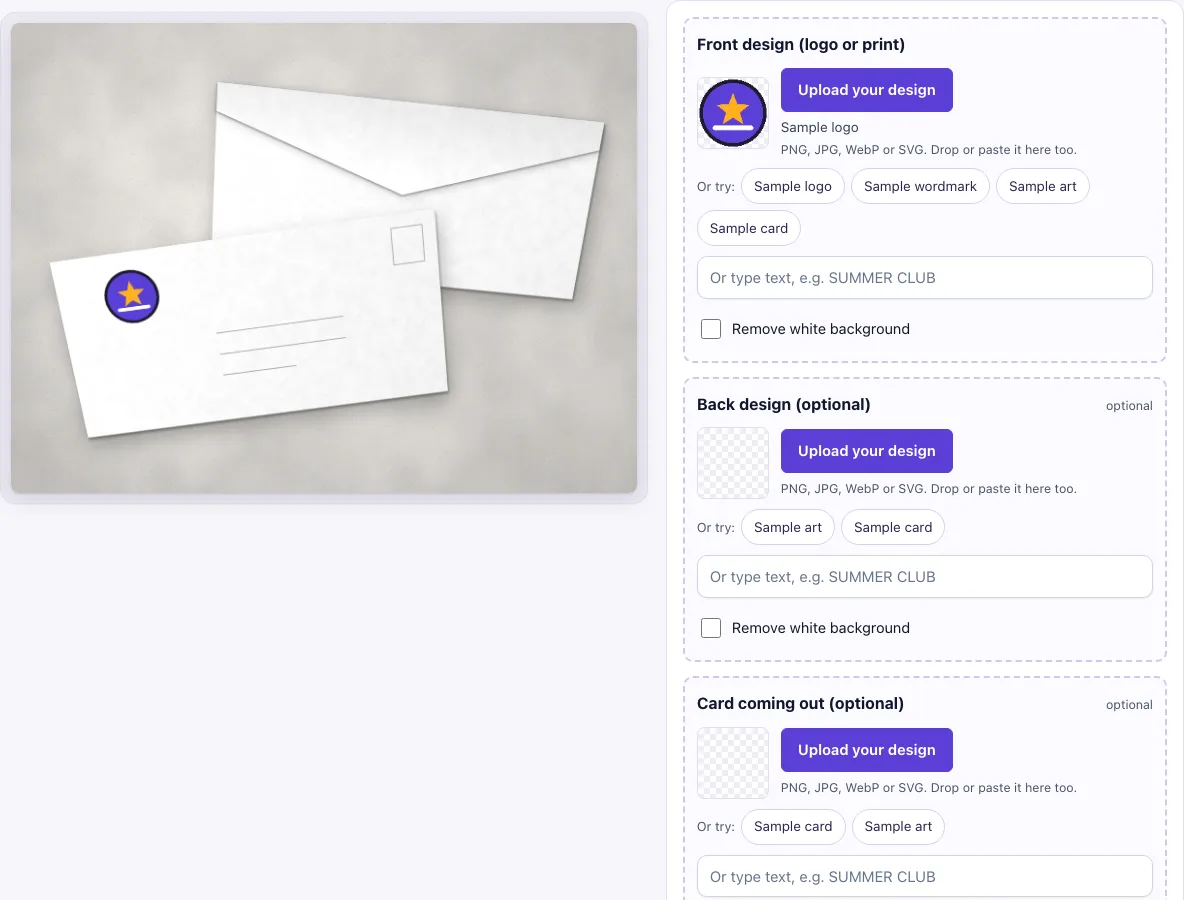
How to use the envelope mockup
- In the Front design (logo or print) slot, click Upload your design, drop a file on the box, or paste an image. You can also type text in the box marked “Or type text, e.g. SUMMER CLUB”. This slot is required.
- If your image has a plain white background, check the Remove white background switch. It turns on by itself when an uploaded image has a plain white background and no transparency.
- Under Layout, choose Front and back (the default), Front only, Back with flap or Card coming out.
- Under Envelope size, choose DL (110 × 220 mm) (the default), C5 (162 × 229 mm) or US #10 (4 1/8 × 9 1/2 in).
- Under Front design as, choose Corner logo (the default) or Full print.
- If you want, fill the Back design (optional) and Card coming out (optional) slots.
- Under Paper colour, pick White, Cream, Natural, Kraft or Black, or use the colour picker for a custom colour.
- Under Background, pick one of the eight scenes, starting with Light concrete.
- Under Download size, choose Standard (1600 × 1200 px) or Large (2400 × 1800 px). Then click Download PNG or Download JPG.
The settings are kept in the page address, so if you copy the link, it reopens the same layout.
How to make an envelope mockup
A mockup works by placing your design onto a realistic picture of the product, so the result looks like a printed envelope rather than a flat file. The main idea is to match the design to the envelope’s real shape and to leave room for the parts of an envelope that already carry information. With Corner logo, your design sits in the top-left corner, where a return address normally goes, so it should be a compact mark.
The corner logo sits inside a box about 30 percent of the envelope’s length and 30 percent of its height, and it is fitted whole, so nothing is cropped. A transparent PNG logo looks best because the paper colour shows through its empty areas. Full print works differently: it covers the whole front and crops the edges, so keep text and important shapes away from the outer edges.
What size is a DL envelope?
A DL envelope is 110 × 220 mm. It is an ISO 269 size, and it is designed to hold an A4 sheet folded in three. This makes it one of the most common sizes for business letters. In this tool, DL is the default envelope size.
What size is a C5 envelope?
A C5 envelope is 162 × 229 mm, also an ISO 269 size. It fits an A5 sheet laid flat without folding, so it suits larger documents, brochures and cards. If you want a bigger envelope than DL for your mockup, choose C5 in the Envelope size option.
Can I show the back flap of the envelope?
Yes. The envelope has a pointed flap on the back. Choose Back with flap to show the back on its own, or Front and back to show both sides together. A Back design covers the whole back and continues over the flap, so a pattern or colour runs across both. Without a back design, the back shows the paper colour you chose.
Frequently asked questions
Is this envelope mockup free?
Yes. The tool is free, needs no sign-up, and both download sizes are available without payment.
Can I use the mockup commercially?
Yes. You can use the images you download here to show and sell your own designs and products — in shop listings, ads, social posts and portfolios — with no credit required. You may not resell the blank scenes themselves as mockup templates or use them to run a similar service; see the terms.
Is my design uploaded anywhere?
No. The tool runs in your browser, and your design file is never uploaded.
What if my logo has a white background?
Use a transparent PNG if you can, since it gives the cleanest result on a coloured paper. If your image has a plain white background and no transparency, the Remove white background switch turns on by itself and makes near-white pixels transparent.
Is the scene a photo?
No. The envelope, its shadow and the background are drawn by code in your browser, so there is no stock photo involved and the same settings always give the same picture.
Do I need to install anything or create an account?
No. The tool runs in your browser tab, so there is nothing to install and no account to create. Open the page, add your design and download the result.
Related tools
- Letterhead mockup: use it to show a letterhead design.
- Business card mockup: use it to show a business card design.
- Postcard mockup: use it to show a postcard design.
- Greeting card mockup: use it to show a greeting card design.
- Brochure mockup: use it to show a brochure design.
- Sticker mockup: use it to show a sticker design.
- Flyer mockup: use it to show a flyer design.