
Flyer Mockup
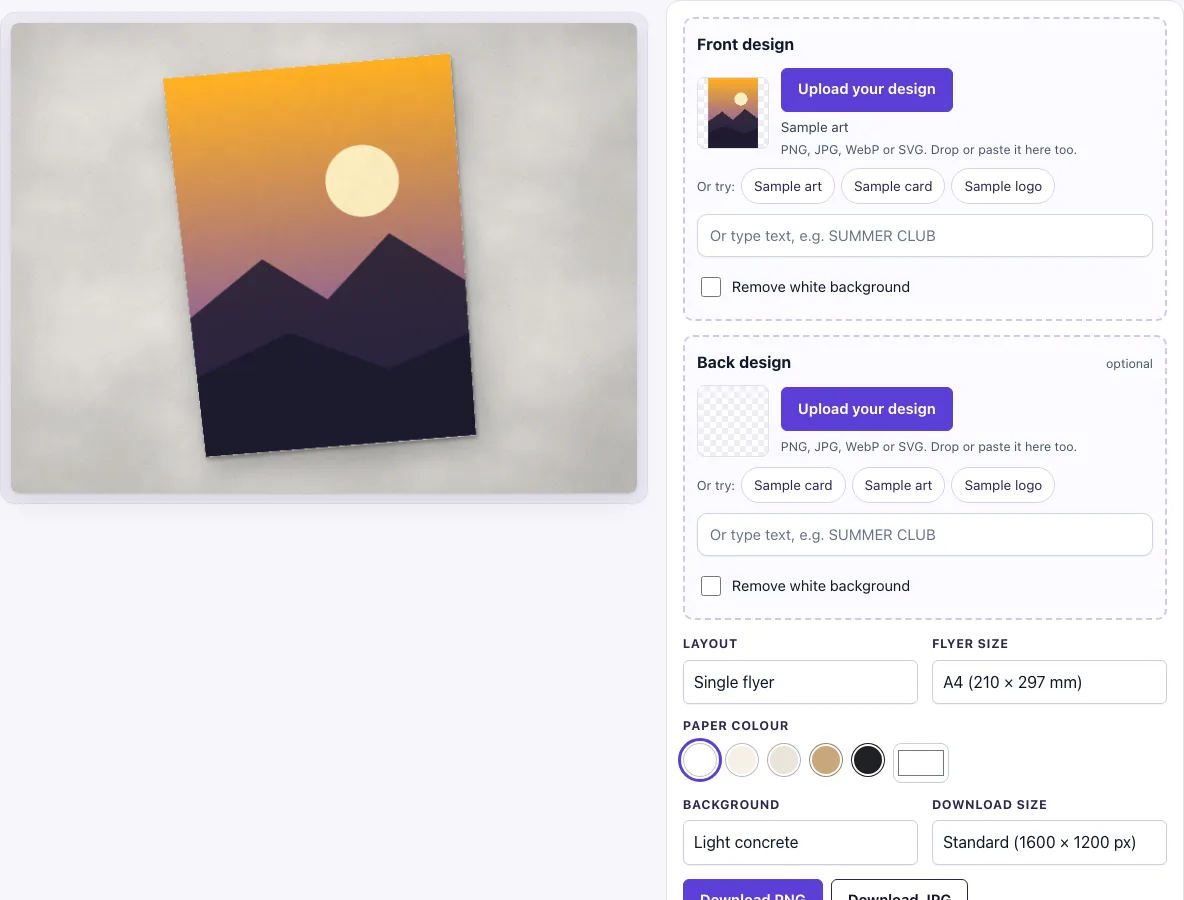
Upload your flyer, choose the layout and size, and download a realistic mockup image.
How to use the Flyer mockup
- Choose a Layout: ‘Single flyer’, ‘Two flyers, overlapping’ or ‘Fanned stack’.
- Choose a Flyer size: ‘A4 (210 × 297 mm)’, ‘US Letter (8.5 × 11 in)’ or ‘A5 (148 × 210 mm)’.
- In the Front design slot, click ‘Upload your design’, drop a file on the box, or paste an image. You can also type text in the text box, or click ‘Sample card’, ‘Sample logo’ or ‘Sample art’.
- Optional: add a design to the Back design slot using the same methods.
- Choose a Paper colour: white, cream, natural, kraft or black.
- Choose a Background: Light concrete, Warm paper, Oak table, Dark slate, Linen, Sage, Blush or Studio white.
- Check the Remove white background switch. It turns on automatically when an uploaded image has a plain white background and no transparency. Turn it on or off as your design needs.
- Choose a Download size: Standard (1600 × 1200 px) or Large (2400 × 1800 px). Then click ‘Download PNG’ or ‘Download JPG’.
Pick Large when you need a bigger image. The paper colour shows through any transparent parts of your design, so try a few colours before you download.
Tip: choose the Flyer size that matches your print order first, because the picture shows the sheet’s real proportions. Then try Two flyers, overlapping with a Back design if you print on both sides, or Fanned stack to show a pile of copies. Changing the layout never re-uploads or alters your file, so you can switch freely.
What size is a flyer?
A4 is 210 × 297 mm and A5 is 148 × 210 mm. Both are ISO 216 sizes, and each one is half the size of the sheet before it, so two A5 sheets make one A4. US Letter, at 8.5 × 11 in, is the standard size in the United States.
The three sizes have different proportions. The tool draws the flyer at about the same height in the picture whatever size you pick, so the size mainly changes the file you should upload, not how large the flyer looks on the table.
What file should I upload for a flyer mockup?
Upload a file at your flyer’s ratio: 2480 × 3508 px at 300 dpi for A4, or 1748 × 2480 px for A5. Leave out bleed and crop marks, because the tool shows the flyer as a finished sheet.
The design fills the sheet using a cover fit. If your file’s ratio is different from the flyer’s, the edges are cropped. Accepted formats are PNG, JPG, WebP, GIF and SVG.
Can I show a back side?
Yes. Add a design to the optional Back design slot. In the ‘Two flyers, overlapping’ layout, the back design sits on the lower sheet, so it appears under the front sheet.
If you leave the back slot empty, both sheets show the front design. The ‘Fanned stack’ layout uses only the front design, so a back design won’t appear there.
How to make a flyer mockup?
A mockup places a finished design on a surface so viewers can judge it as a physical print. Good results start with a clean file at the correct ratio, because the tool does not change your design pixels. The shadows, paper grain and light from the top left are added by the scene around your design.
Choose the scene to suit the design. A light background works well with a pale flyer, and a dark background makes a light design stand out. Kraft and natural paper colours suit a handmade or rustic look, while white and black give a plainer, more modern feel. Try two or three combinations and keep the one that makes your text easiest to read.
Which layout should I choose?
Use Single flyer when the artwork is the main point, because the sheet fills most of the picture and every detail stays readable. Use Two flyers, overlapping to show a front and a back in one image; upload the back in the Back design slot. Use Fanned stack to suggest a pile of printed copies, which suits promotions, handouts and event flyers. In the fan the top sheet is fully visible and the others show their edges and a slice of the design.
The paper colour and background change the mood without touching your artwork. White paper on a Studio white background looks clean and modern, while a Kraft paper colour on an Oak table looks handmade. Download as PNG when you want crisp text, or JPG for a smaller file.
Frequently asked questions
Is this flyer mockup free?
Yes. The tool is free and needs no sign-up.
Can I use the mockup commercially?
Yes. You can use the images you download here to show and sell your own designs and products — in shop listings, ads, social posts and portfolios — with no credit required. You may not resell the blank scenes themselves as mockup templates or use them to run a similar service; see the terms.
Is my design uploaded anywhere?
No. The tool runs in your browser. Your design file is never uploaded, and nothing is sent to a server.
Will I get the same picture if I come back later?
Yes. Your settings are kept in the page address, so a copied link reopens the same picture. The same settings always give the same image.
Is the scene a photo?
No. The flyer, its shadow and the background are drawn by code in your browser, so there is no stock photo involved and the same settings always give the same picture.
Which layout is best for a social post?
The ‘Single flyer’ layout gives the largest, clearest view of your design, so it suits a small phone screen. ‘Two flyers, overlapping’ shows a front and a back together, and ‘Fanned stack’ gives a more casual, printed-batch look.
Related tools
- Brochure mockup: use it when your design is a multi-page or folded print.
- Postcard mockup: use it for a mailed card with a front image and a back message.
- Poster mockup: use it for a large printed sheet meant for a wall or window.
- Business card mockup: use it for small contact cards.
- Menu mockup: use it for restaurant or café menus.
- Letterhead mockup: use it for branded business paper.
- Sticker mockup: use it to show a logo or design on a sticker.
- Greeting card mockup: use it for folded cards and printed greetings.
- Magazine mockup: use it for a cover or a page spread in a magazine layout.