
Greeting Card Mockup
Upload your cover and optional inside spread, choose the scene, and download a realistic folded card mockup.
How to use the greeting card mockup
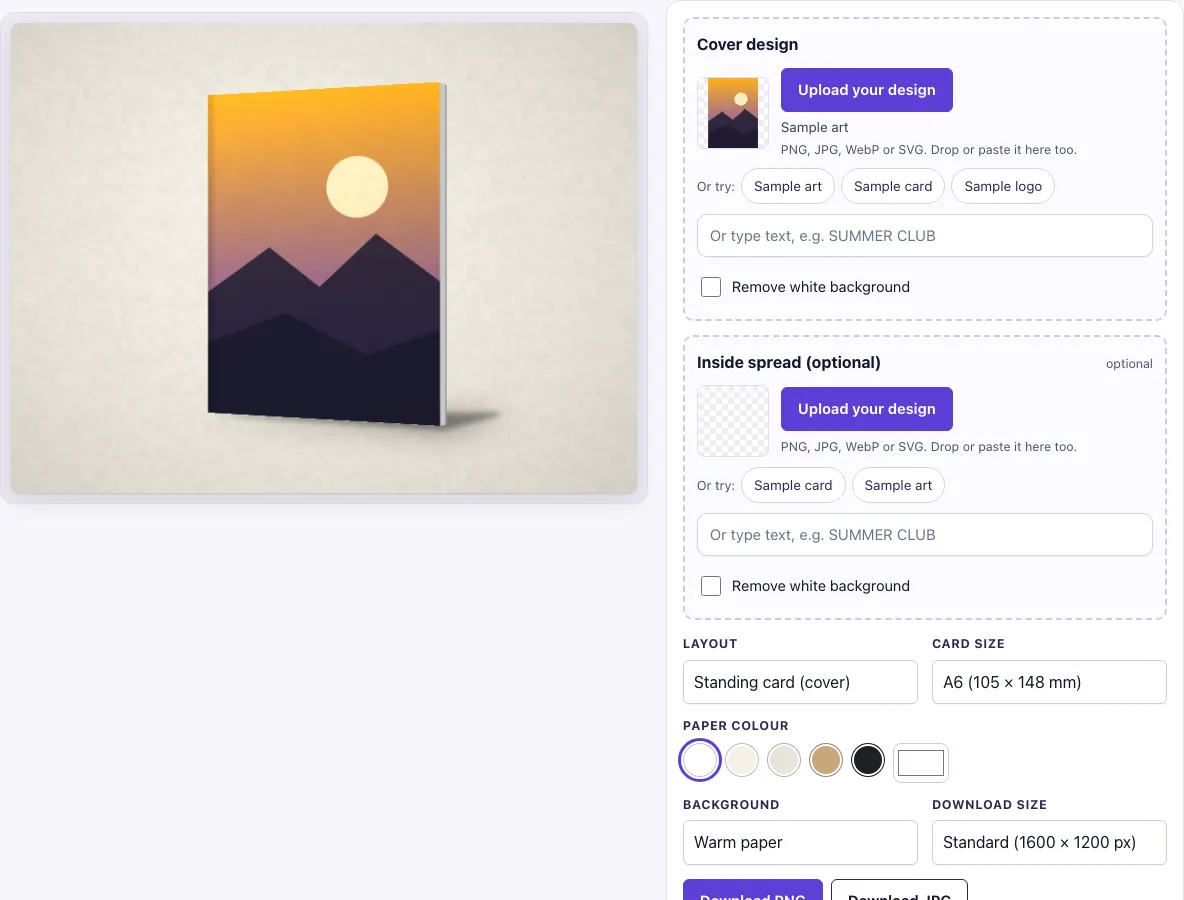
- In the Cover design slot, click Upload your design, drop a file on the box, or paste an image. The page starts with sample art, so you can replace it with your own.
- If you do not have a file yet, type in the text box marked “Or type text, e.g. SUMMER CLUB” instead.
- Check the Remove white background switch. It turns on by itself when you upload an image with a plain white background and no transparency. Switch it on or off to suit your art.
- Optional: add an image to Inside spread (optional) to show the inside of the card.
- Under Layout, choose Standing card (cover), Open card (inside) or Lying flat with envelope. Standing card is the default.
- Under Card size, choose A6 (105 × 148 mm), the default, or 5 × 7 in.
- Under Paper colour, choose White (default), Cream, Natural, Kraft, Black or a custom colour. Under Background, pick one of eight options, starting from Warm paper.
- Under Download size, choose Standard (1600 × 1200 px) or Large (2400 × 1800 px).
- Click Download PNG or Download JPG.
The settings are stored in the page address, so if you copy the link, it reopens with the same layout, paper and background.
How to make a greeting card mockup
A greeting card mockup places your finished front design onto a picture of a real folded card, so it looks like a physical product. The design pixels stay as you made them; the scene adds the card’s shape, soft shadows, light from the top left and a fine paper grain. Start with the artwork at the card’s exact size, because the mockup is only as accurate as the proportions of your file.
What size is a greeting card
Greeting card sizes are given as their folded size, and this tool uses that convention. A6 is 105 × 148 mm. It is the ISO 216 size, one quarter of an A4 sheet, and an A6 card is folded from an A5 sheet of 210 × 148 mm. The 5 × 7 in option is 127 × 177.8 mm, a larger folded card. Envelopes are sized to match: a C6 envelope (114 × 162 mm, ISO 269) suits an A6 card, and an A7 envelope (5 1/4 × 7 1/4 in) suits a 5 × 7 in card. The lying flat layout uses these envelope shapes.
How do I show the inside of the card
Choose the Open card (inside) layout and add an image to the optional Inside spread slot. The inside spread is one image that covers both inside panels side by side, so its ratio should be about 1.42 : 1 for A6, which is 210 × 148 mm. The two panels appear in perspective with a shaded gutter at the fold. If you leave the spread empty, the left panel is blank and the right panel shows a few ruled lines.
What file should I upload for a greeting card mockup
Each slot accepts PNG, JPG, WebP, GIF or SVG. For an A6 cover, make the design 105 × 148 mm, which is 1240 × 1748 px at 300 dpi. For 5 × 7 in, the matching size at 300 dpi is 1500 × 2100 px. The cover fills the whole front, so if your proportions differ, the edges are cropped. Transparent areas show the paper colour you chose, so a PNG with transparency lets the card stock show through.
Frequently asked questions
Is this greeting card mockup free?
Yes. The tool is free to use, needs no sign-up, and has no paid option.
Can I use the mockup commercially?
Yes. You can use the images you download here to show and sell your own designs and products — in shop listings, ads, social posts and portfolios — with no credit required. You may not resell the blank scenes themselves as mockup templates or use them to run a similar service; see the terms.
Does the tool upload my design file?
No. The tool runs in your browser, and your design file is never uploaded.
Can I type text instead of uploading a file?
Yes. Type your words in the text box under the slot, such as “SUMMER CLUB”, to create the design without an image file.
Which download size should I pick?
Choose Standard (1600 × 1200 px) for a smaller image, or Large (2400 × 1800 px) if you want more detail when viewing the image at full size.
Is the scene a photo?
No. The greeting card, its shadow and the background are drawn by code in your browser, so there is no stock photo involved and the same settings always give the same picture.
Related tools
- Envelope mockup: use it to show an envelope design.
- Brochure mockup: use it to show a brochure design.
- Postcard mockup: use it to show a postcard design.
- Business card mockup: use it to show a business card design.
- Flyer mockup: use it to show a flyer design.
- Picture frame mockup: use it to show a framed picture design.
- Sticker mockup: use it to show a sticker design.