
Hoodie Mockup
Put your design on a pullover hoodie in any colour and download the mockup.
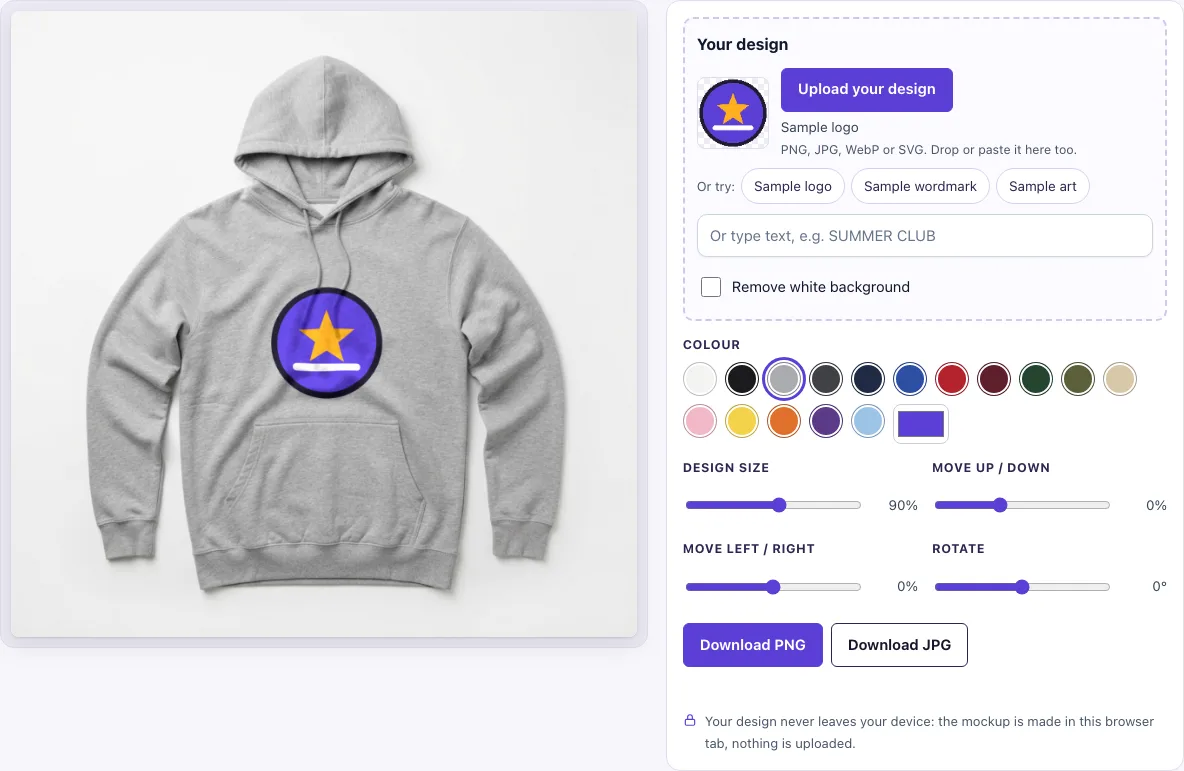
How to use the Hoodie Mockup tool
- In the ‘Your design’ box, click Upload your design. You can also drop a file on the box or paste an image. Accepted files are PNG, JPG, WebP, GIF or SVG. To test first, click Sample logo, Sample wordmark or Sample art, or type words in the Or type text box.
- If your picture has a plain white background and no transparency, the Remove white background switch turns on by itself. Check the preview and switch it off if it removes parts of your design you want to keep.
- Pick a colour swatch, or use the custom colour picker. Heather grey is the default.
- Set Design size. The default is 90%, and 100% makes the design fit the print area.
- Adjust placement with Move up / down, Move left / right and Rotate.
- Click Download PNG or Download JPG. The file is 1024 × 1024 px.
Your colour and placement settings are saved in the page address, so a copied link reopens the same mockup. The design file is not in the link, so upload it again when you open the link.
If you are making listing images for several colours, start with the colour your best-selling blank comes in, set the size and position once, then click through the other swatches: the placement stays the same, so every image in the set matches.
How to make a hoodie mockup
To make a hoodie mockup, place your design on a hoodie photo, choose the colour, set the size and position, then export the image. The result looks believable because the design is not redrawn. It is moved by at most about 3 px along the large folds of the photo and shaded by the fabric, so the print follows the cloth.
The print also behaves differently on different fabrics. On white fabric, the ink is multiplied with the fabric, so folds show through the design. On coloured or dark fabric, the design is printed as an opaque layer, similar to ink on a white underbase, and is lightly shaded by the folds and fabric texture.
This affects how you prepare your file. Use a PNG with a transparent background for the cleanest print. On a white hoodie, avoid white areas in the design, because white ink on white fabric is invisible. On a dark hoodie, use light colours.
Where should a design go on a hoodie
On a hoodie, the design usually goes on the chest, between the ends of the drawstrings and the top of the kangaroo pocket. This is the default print area in the tool and a common spot for a centre-chest print.
You can move the design higher, over the drawstrings. The strings stay in front of the print, as they would on a real hoodie. Use Move up / down (−40 to 70%) and Move left / right (−40 to 40%) to position it. Keep the design centred unless you have a reason to offset it. A Design size of 100% fits the whole print area, and a smaller value leaves more space around the edges.
Why does my design look different on a grey hoodie?
Heather grey sits between white and black. The tool treats it as coloured fabric and prints your design as an opaque layer, so a white logo stays white instead of disappearing, while the speckled texture of the fabric still shows faintly through the ink. That is close to how screen-printed and DTG prints look on heather blanks.
Frequently asked questions
Is this hoodie mockup free?
Yes. Everything on this page is free to use today, with no sign-up.
Is my design uploaded?
No. The mockup is made in your browser tab, so your design file is never uploaded. The page link stores your colour, photo and placement, but not the design file.
Can I use it commercially?
Yes. You may use downloaded images to show and sell your own designs and products, in shop listings, ads, social posts and portfolios, with no credit required. The blank photos themselves may not be resold as mockup templates.
Can I change the hoodie colour?
Yes. Choose one of the swatches, from Heather grey and White to Sky blue, or use the custom colour picker. Recolouring keeps the folds of the photo.
What file types can I upload?
You can upload PNG, JPG, WebP, GIF or SVG files. A PNG with a transparent background usually gives the cleanest print.
What size is the download?
The download is 1024 × 1024 px for both PNG and JPG.
Do I need to install anything or create an account?
No. The tool runs in your browser tab, so there is nothing to install and no account to create. Open the page, add your design and download the result.
Related tools
- Black hoodie mockup: Use this when you want to show a design on a black hoodie specifically.
- Hoodie template: Use this when you need a blank hoodie layout to start a design from.
- T-shirt mockup: Use this when your product is a tee rather than a hoodie.
- Apparel mockups: Use this to put one design on four garment photos at once.
- Black shirt mockup: Use this to test a design on a dark shirt, where light colours print best.
- White shirt mockup: Use this to check how a design looks on a light shirt.
- T-shirt outline: Use this when you need a simple shirt outline to trace or place artwork on.