
Menu Mockup
Upload your menu design, choose a single card or bi-fold, and download a realistic mockup image.
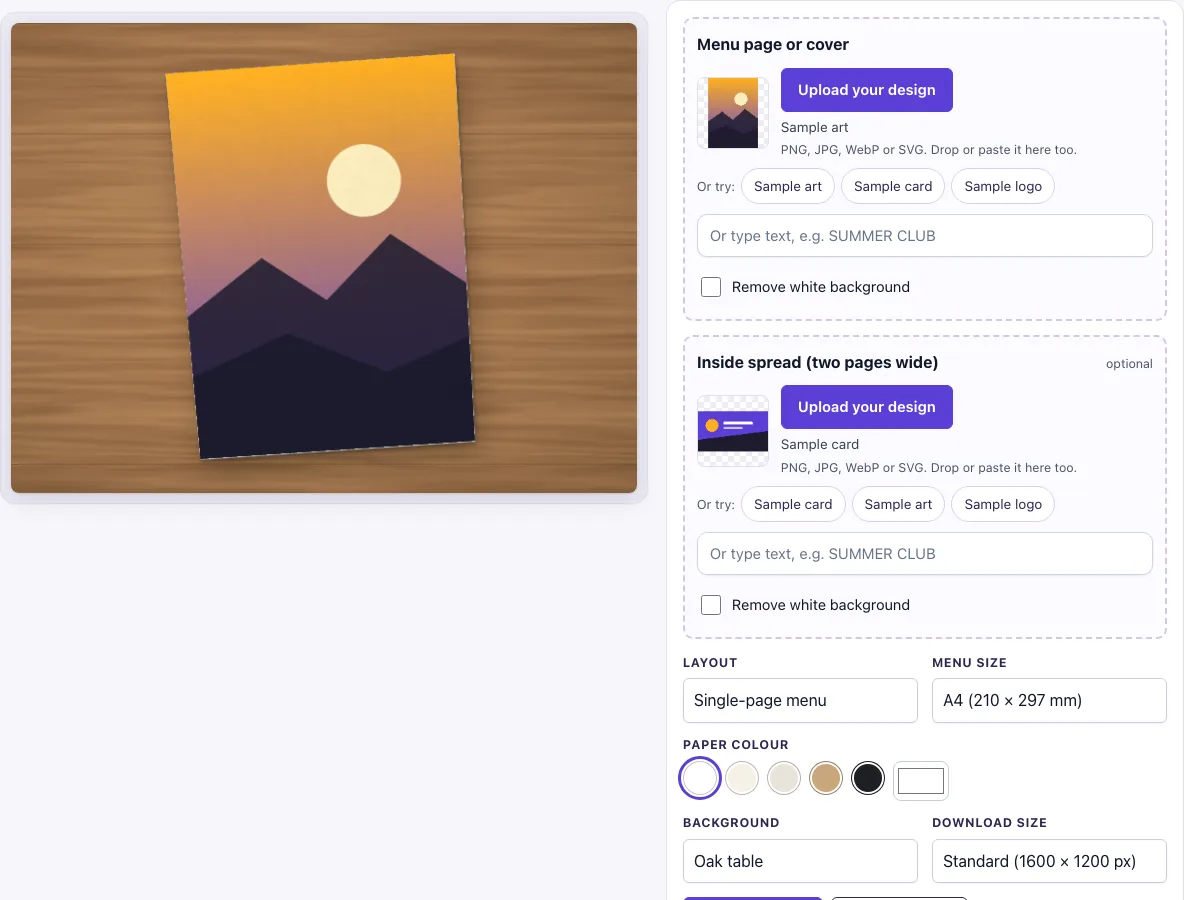
How to use the Menu mockup
- Click Upload your design in the Menu page or cover slot. You can also drop a file on the box, paste an image, use Sample card, or type text in the text box. This slot is required.
- Optional: add an image to Inside spread (two pages wide) the same way if you want an open bi-fold to show different content on the inside pages.
- Choose a Layout: Single-page menu, Bi-fold menu open, or Open bi-fold with cover.
- Choose a Menu size: A4 (210 × 297 mm), US Letter (8.5 × 11 in), or Tall (4.25 × 11 in). This is the size of the closed page.
- Choose a Paper colour: white, cream, natural, kraft or black.
- Choose a Background, such as Oak table, Linen or Studio white.
- Check the Remove white background switch. It turns on automatically when your image has a plain white background and no transparency. Switch it off if you do not want that effect.
- Choose a Download size: Standard (1600 × 1200 px) or Large (2400 × 1800 px).
- Click Download PNG or Download JPG.
Your settings are kept in the page address. Copy the link to reopen the same picture later, with the same layout, size, paper and background.
Tip: pick the Menu size first, since it sets the closed page shape. For a bi-fold, upload an Inside spread twice as wide as one page if the inside differs from the cover; otherwise the menu page design appears on both pages. Open bi-fold with cover shows both views in one picture.
What size is a restaurant menu?
Menus come in several standard sizes, so there is no single answer that fits every restaurant. Choose the size your printer will use, then set the same size in the Menu size option so the picture matches the real product. The tool offers three sizes for the closed page. A4 (210 × 297 mm) follows ISO 216, the international paper standard. US Letter (8.5 × 11 in) is the standard US sheet. Tall (4.25 × 11 in), or 107.95 × 279.4 mm, is a US Letter sheet cut in half lengthwise, which suits a slim, long menu.
For an open bi-fold, the page size is still the closed size, but the inside spread must cover two pages side by side. For A4, that means an image 420 × 297 mm, which is 4961 × 3508 px at 300 dpi. Keeping the spread exactly twice the width of one page stops the design from being stretched or cut at the centre fold.
What file should I upload for a menu mockup?
Each design slot accepts PNG, JPG, WebP, GIF or SVG files. Use a file whose shape matches the page you chose. The design fills each page using a cover fit, so if its ratio differs from the page, the edges are cropped. A4 pages are narrower and taller than US Letter pages, for example, so a Letter-shaped design will lose a little from its left and right sides on an A4 menu.
For the best sharpness, use a high-resolution file. A PNG with a transparent background gives you the most control. If your file has a plain white background and no transparency, the Remove white background switch turns on for you. The switch makes near-white pixels transparent, so the paper colour you chose shows through; switch it off if the white is part of your design.
Single-page or bi-fold menu?
A single page suits a short menu, a drinks list or a daily special, and it gives the largest view of your artwork. A bi-fold gives you a cover and two inside pages for a longer menu. The tool shows both, so you can make one picture of the cover and another of the open spread for the same restaurant.
Frequently asked questions
How do I make a menu mockup?
Start with a finished menu file, then upload it to the Menu page or cover slot. Set the layout, size, paper colour and background to match your menu, and download the picture.
How do I show a bi-fold menu?
Set Layout to Bi-fold menu, open, or to Open bi-fold with cover for the closed cover on top. A gutter shadow runs down the centre fold. If you do not upload an inside spread, your menu page design is shown on both pages. Upload an inside spread if the two sides should show different content.
Is this menu mockup free?
Yes. There is no sign-up and no paid option.
Can I use the mockup commercially?
Yes. You can use the images you download here to show and sell your own designs and products — in shop listings, ads, social posts and portfolios — with no credit required. You may not resell the blank scenes themselves as mockup templates or use them to run a similar service; see the terms.
Why is my menu cropped in the picture?
The design fills each page and is cropped if its shape differs from the page. Choose the menu size that matches your file’s proportions, or adjust the design so its key content sits in the centre.
Can I type my menu text instead of uploading a file?
Yes. Each design slot has a text box for typing text in place of an uploaded image.
Is the scene a photo?
No. The menu, its shadow and the background are drawn by code in your browser, so there is no stock photo involved and the same settings always give the same picture.
Related tools
- Brochure mockup: use it when you need to show a folded or multi-page brochure.
- Flyer mockup: use it to show a single-sided flyer for an event or promotion.
- Postcard mockup: use it to present a postcard for a mailing or a shop display.
- Business card mockup: use it to show cards for a branding or stationery set.
- Poster mockup: use it to display a large printed poster on a wall or surface.
- Paper bag mockup: use it to show packaging for a takeaway or food brand.
- Envelope mockup: use it to present a matching envelope.
- Picture frame mockup: use it to display a print inside a frame.
- Newspaper ad mockup: use it to show an advert on a newspaper page.