
Mug Mockup
Wrap your design around a white coffee mug and download the mockup.
The mug mockup tool wraps your design around a white ceramic coffee mug and lets you download the result as a 1024 × 1024 px PNG or JPG. Upload a logo, artwork or text, then adjust its size, position and angle until it looks right on the mug. The tool runs in your browser tab, it is free, and you do not need to sign up.
It offers two photos, ‘Mug, side view’ and ‘Mug, close-up’, and both show the handle on the right. Use it to preview how a design sits on a real mug before you send anything to print.
Nothing is uploaded: the mug is drawn in your browser tab.
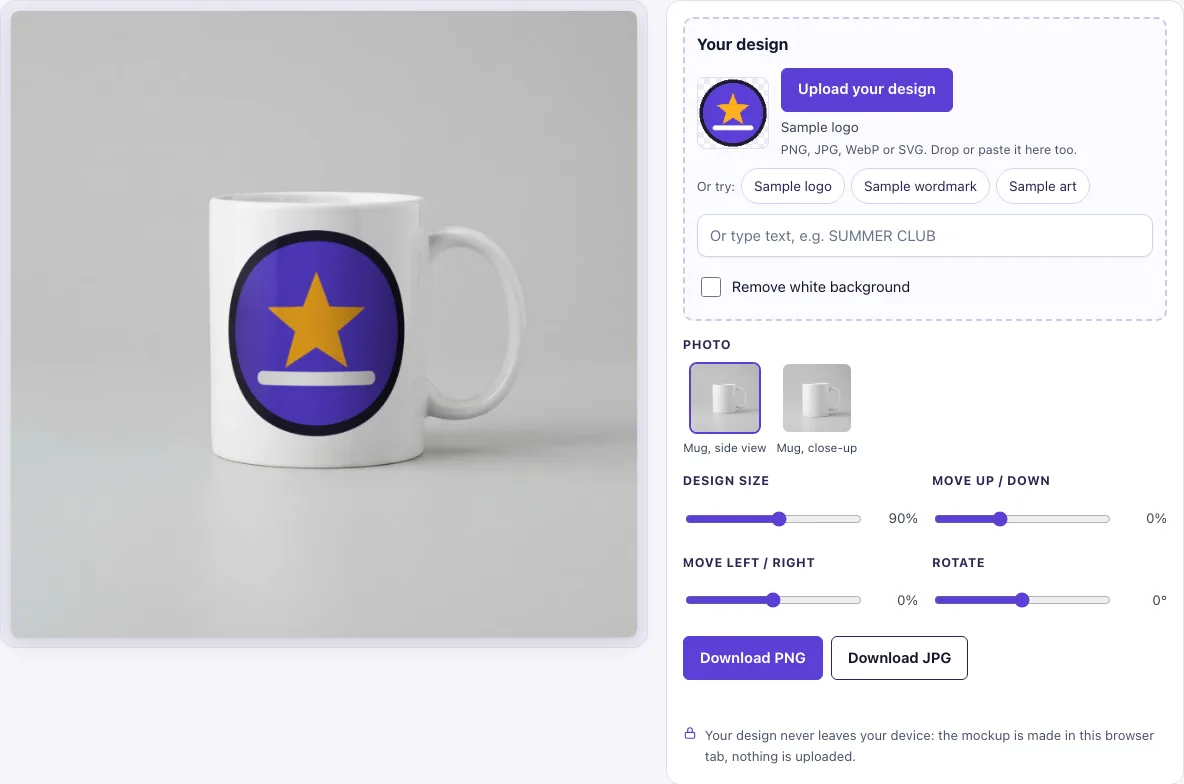
How to use the Mug Mockup
- Choose a photo: ‘Mug, side view’ or ‘Mug, close-up’.
- In ‘Your design’, click ‘Upload your design’ (PNG, JPG, WebP, GIF or SVG). You can also drop or paste the file. To test first, click ‘Sample logo’, ‘Sample wordmark’ or ‘Sample art’, or type into the ‘Or type text’ box.
- Turn on ‘Remove white background’ if your design sits on a white box; it switches on by itself for uploads with a plain white background and no transparency.
- Set ‘Design size’ between 20% and 150%. The default is 90%.
- Move the design with ‘Move up / down’ (−40 to 70%) and ‘Move left / right’ (−40 to 40%).
- Use ‘Rotate’ (−45° to 45°) to angle the design.
- Download the mockup as a PNG or JPG at 1024 × 1024 px.
Your settings are kept in the page address, but the design is not. If you share or bookmark the address, the recipient will still need to upload the same design file to see your mockup.
The preview updates as you move a slider, so you can watch the design turn around the curve while you change its size. If text near the edges looks squeezed, lower Design size or move the design back towards the centre of the mug. To compare both photos, set the placement once and click the other photo: the size and position stay the same.
How to make a mug mockup
A mug mockup is a flat image that makes your design look as if it is printed on a real mug. This tool places your design on an unrolled band around the mug, then maps each column of pixels onto a true cylinder. As the design turns away from you, it compresses towards the sides, and the visible wrap reaches about 76° to each side of the front. The print also darkens towards the edges, and the mug’s own glaze highlight stays on top, so the design looks like part of the ceramic. The top and bottom edges bow slightly, like a rim seen from above.
What size is a mug print area
Common sublimation mugs are 11 oz and 15 oz. A full wrap design is usually prepared as one wide rectangle that goes all the way round the mug. This tool shows only the front of the mug, so it does not produce that full wrap file.
The default 90% design size fits inside the printable band on the front. Designs that are longer than the band wrap further round the side, and parts of them may disappear behind the curve, as they would on a real mug.
Can I use it commercially
Yes, within limits. You may use the downloaded images to show and sell your own designs and products, and you do not need to credit the tool. The blank mug photos, however, may not be resold as mockup templates.
Which mug photo should I use?
‘Mug, side view’ shows the whole mug with some table and background around it, which suits shop listings where the product should look small and clean. ‘Mug, close-up’ fills more of the frame and shows the mug slightly from above, so the curve of the rim and the wrap of the print are easier to see; use it for detailed artwork or text. Both photos keep the handle on the right, so a centred design faces the camera.
How do I keep text readable on a mug?
Keep important words in the middle third of the design: that part faces the camera and is barely compressed, while anything near the edges of the band is squeezed by the curve and darkened by the shading. A short logo or a two-line slogan at 60–90 % size usually reads well; a long line of text at 150 % will run round the side.
Frequently asked questions
Is it free?
Yes. Everything on the page is free, and no sign-up is needed.
Is my design uploaded?
No. Your design is handled in your browser tab and is never uploaded anywhere.
Why does part of my design disappear?
Long designs wrap further round the side of the mug, and anything past the curve is hidden, just as it would be on a real mug. Reduce the ‘Design size’ or move the design towards the centre to keep more of it in view.
Are the mug photos real?
No. The mug photos are AI-generated with Google Gemini image models, made in October 2026. They were checked by hand to make sure they contain no logos or text.
Can I show the back of the mug?
No. Both photos show one side of the mug with the handle on the right. For a two-sided design, make one mockup per side and show them next to each other.
What file works best?
A PNG with a transparent background, so only your artwork is printed and the white glaze shows around it. If your file has a white box around the design, switch on ‘Remove white background’.
Do I need to install anything or create an account?
No. The tool runs in your browser tab, so there is nothing to install and no account to create. Open the page, add your design and download the result.
Related tools
- T-shirt mockup: use this when your design will be printed on clothing.
- Can mockup: use this to preview a design on a drink can.
- Packaging mockup: use this to show a design on a box or package.
- Hang tag mockup: use this to preview a label or tag attached to a product.
- Paper bag mockup: use this to show a design on a paper carrier bag.
- Sticker mockup: use this to preview a design as a sticker.
- Poster mockup: use this to show a design framed or printed as a poster.