
Packaging Mockup
Put your design on the front, side and top of a product box and download a realistic mockup image.
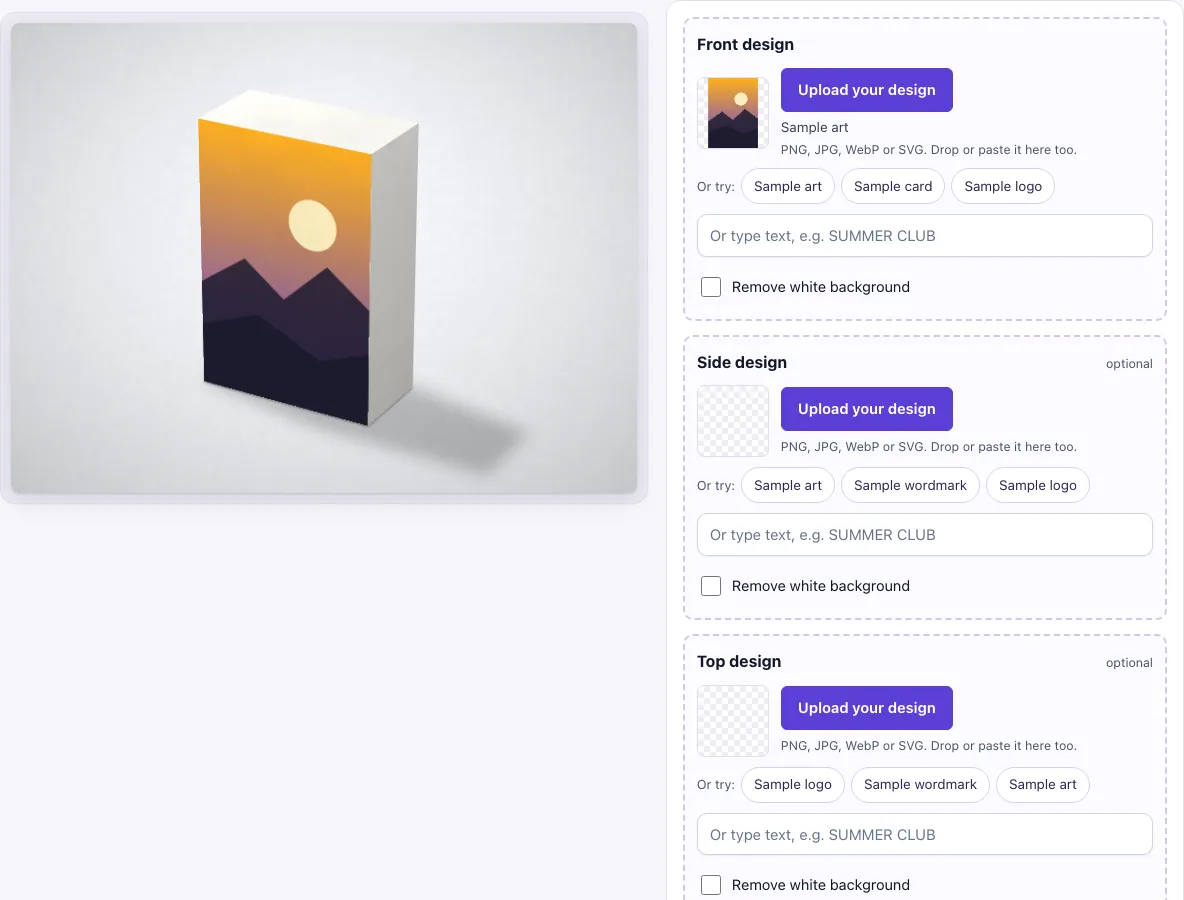
A packaging mockup is an image that shows your design printed on a product box, so you can see how it looks before anything is manufactured. This packaging mockup tool places your design on a closed box seen in three-quarter view, with the front, right side and top visible, and gives you a PNG or JPG image. It runs in your browser, it is free, and there is no sign-up. Your design file stays on your device and is never uploaded.
You can choose a tall, square or flat box, adjust its width, height and depth, and pick a background and box colour. Use a separate design for each visible face if your packaging has different artwork on the front, side and top. The same settings always produce the same picture, so you can rebuild a view later.
How to use the Packaging Mockup Tool
- In the Front design slot, click Upload your design, drop a file onto the box, or paste an image. A sample design loads at the start, so replace it with your own. The slot accepts PNG, JPG, WebP, GIF or SVG. You can also type text in the text box instead of uploading.
- Optional: add a Side design and a Top design the same way. A face with no design shows the box colour.
- If your artwork has a white background you want removed, turn on Remove white background. Near-white pixels become transparent.
- Under Box shape, choose Tall box, Square box or Flat box.
- Move the Width, Height and Depth sliders to change the proportions of the chosen shape.
- Under Viewing angle, pick Three-quarter or Turned to the side.
- Under Box colour, choose a preset colour or a custom colour for faces without a design.
- Under Background, choose a scene. The default is Studio white.
- Under Download size, choose Standard (1600 × 1200 px) or Large (2400 × 1800 px).
- Click Download PNG or Download JPG.
The sample buttons under each slot, such as Sample art and Sample logo, let you try the tool before you upload anything. The settings are kept in the page address. If you copy the link, it reopens the same view.
How to make a packaging mockup
To make a packaging mockup, place your finished artwork onto a picture of a blank box so it looks like the real product. This tool wraps each design onto the face it belongs to, then adds light and shadow so the flat artwork reads as a three-dimensional object.
Start with your artwork as a flat image, then assign it to the matching face: front, side or top. Choose the box shape and size, then pick a background that suits your brand. Download the result once the box looks right.
What file should I upload for a box mockup
Upload the artwork as a PNG, JPG, WebP, GIF or SVG file. Use a high-resolution file so the design stays sharp when the image is enlarged. For example, a front design of 1200 × 1800 px fits the tall box front exactly.
If your artwork has a transparent background, the box colour shows through the transparent parts. If you want a plain white background removed instead, switch on Remove white background.
Can I put different designs on each side of the box
Yes. The front, side and top each have their own upload slot, so every visible face can show different artwork. The side and top are optional. If you leave a slot empty, that face shows the box colour.
The box is a closed rectangular carton, so each design wraps a single face. The tool does not draw flaps or folds, so the faces are shown as a finished box.
What proportions does the box design need
At 100% on the sliders, the tall box front is 2 : 3, its side is 1 : 3 and its top is 2 : 1. The shapes are proportions, not real sizes. Width : height : depth is 100 : 150 : 50 for the tall box, 1 : 1 : 1 for the square box and 150 : 55 : 105 for the flat box.
Each face is filled with its design using a cover fit. If your artwork has different proportions from the face, the edges are cropped rather than stretched. Check that the important parts of your design are near the centre so nothing is lost. The Width and Height sliders run from 70% to 130%, and Depth runs from 50% to 150%.
Frequently asked questions
Is this packaging mockup free?
Yes. It runs in your browser, needs no sign-up and has no paid option.
Can I use the mockup commercially?
Yes. You can use the images you download here to show and sell your own designs and products — in shop listings, ads, social posts and portfolios — with no credit required. You may not resell the blank scenes themselves as mockup templates or use them to run a similar service; see the terms.
Does the mockup show flaps or a dieline?
No. The box is a finished, closed carton with no flaps, dieline or folds drawn. Use it to show how the packaging looks, not as a cutting template.
Is my design file uploaded anywhere?
No. The tool runs in your browser, and the design file is never uploaded.
Which download size should I choose?
Choose Standard (1600 × 1200 px) for web use and quick previews. Choose Large (2400 × 1800 px) when you need more detail. Then click Download PNG or Download JPG.
Is the scene a photo?
No. The box, its shadow and the background are drawn by code in your browser, so there is no stock photo involved and the same settings always give the same picture.
Related tools
- Can mockup: use it to wrap a label around a drink can.
- Lanyard mockup: use it to show an ID badge with a lanyard strap.
- Paper bag mockup: use it to put your logo on a shopping bag.
- Hang tag mockup: use it to show a tag with a hole and string.
- Sticker mockup: use it to show a sticker design on a surface.
- Business card mockup: use it to show the front and back of a card.
- Envelope mockup: use it to show a branded envelope.
- Flyer mockup: use it to show a printed flyer.
- Mug mockup: use it to show a design wrapped around a white coffee mug.
- Pizza box mockup: use it to show a design on the lid of a takeaway pizza box.