
Picture Frame Mockup
Upload your artwork, choose the frame, mat and ratio, and download a framed wall art mockup image.
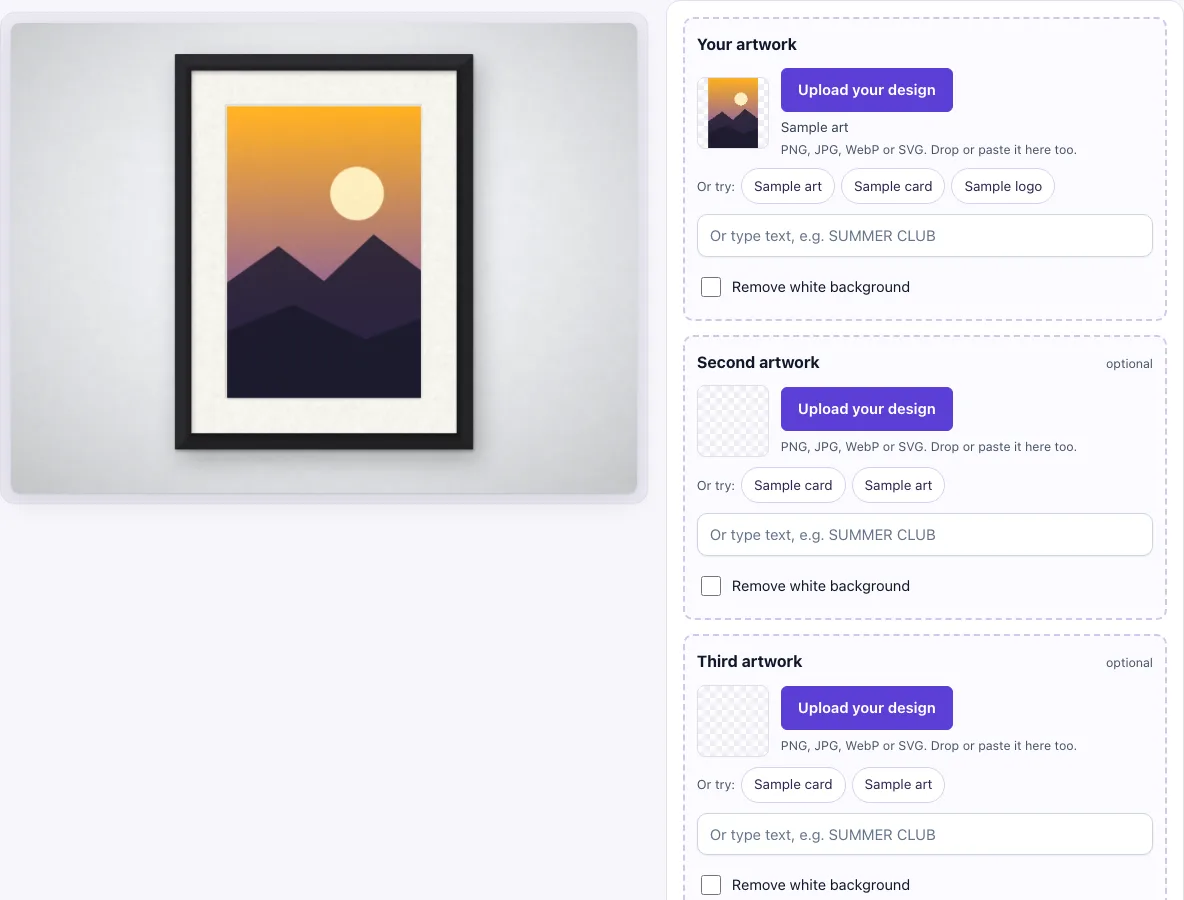
This picture frame mockup places your artwork inside a frame on a plain wall, so you can see how a print or design will look before you order it. It draws the frame in code, seen straight on, and gives you a PNG or JPG image. It runs in your browser, is free, and needs no sign-up.
It also works as a wall art mockup. Choose the Frameless style to show a poster or print on the wall without a frame. You can show one frame, a pair of frames or a gallery wall of three, and change the frame style, wall colour and artwork ratio. Your design file is never uploaded, so it stays on your device.
How to use the picture frame mockup
- Open the page. The first artwork slot, “Your artwork”, starts with sample art. Click “Upload your design”, drop a file on the box, or paste an image. To use text instead, type in the “Or type text” box, for example SUMMER CLUB.
- If your image has a plain white background, check the “Remove white background” switch. It turns on by itself when an uploaded image has a plain white background and no transparency.
- Under “Layout”, choose One frame, Pair of frames or Gallery wall (3 frames). For the pair and gallery layouts, add images to “Second artwork” and “Third artwork”. An empty slot repeats “Your artwork”.
- Under “Frame style”, choose Black, White, Oak, Gold or Frameless.
- Under “Frame width”, choose Thin, Standard or Wide.
- Leave “Mat (passe-partout)” on for a white mat, or switch it off.
- Under “Artwork ratio” and “Orientation”, pick the shape that matches your artwork.
- Under “Background”, pick the wall colour.
- Under “Download size”, choose Standard or Large, then click “Download PNG” or “Download JPG”.
The settings are kept in the page address, so you can copy the link to reopen the same layout later. Nothing is uploaded: the preview and the download are made in your browser.
What ratio should my artwork be for a frame mockup?
Use the ratio of the artwork itself, not the frame. The Artwork ratio option sets the shape of the artwork inside the frame, and the mat is not counted.
The choices are 2:3 (default, for example 4 × 6 or 20 × 30 in), 3:4 (18 × 24 in), 4:5 (8 × 10 or 16 × 20 in), A-series (A4, A3 or A2) and Square (1:1). The A-series ratio is 1 : √2, about 1 : 1.414, the ISO 216 proportion shared by A4, A3 and A2. Set Orientation to Landscape if your artwork is wider than it is tall.
The artwork fills its opening completely, so an image with a different ratio is cropped at the edges rather than stretched. Export your artwork at the exact ratio, for example 2400 × 3600 px for 2:3, so that you control which part is cut.
Can I add a mat to the frame?
Yes. The “Mat (passe-partout)” switch is on by default and adds a white mat with a bevel around the artwork. Switch it off if you want the artwork to sit directly in the frame.
The mat sits between the artwork and the frame, so it does not change the artwork ratio you chose. Frame width changes how wide the frame is, from Thin to Wide. If you pick Frameless, the mat becomes a white poster border.
How do I make a wall art mockup?
Choose Frameless as the frame style. The artwork is shown on the wall as a poster or print, with no frame around it, and the mat becomes a white poster border.
The scene adds soft contact and ambient shadows, light falling from the top left and a fine paper grain. These make the artwork look like it is hanging on a real wall. Your design pixels are not redrawn or changed, so the colours and details you export remain your own.
Which frame style should I choose?
Black and White are plain frames that suit most artwork. Oak adds a wood texture, Gold adds a bevelled gold gradient, and Frameless shows the artwork alone. Frame width changes how heavy the frame looks: Thin keeps attention on the artwork, Wide gives a stronger gallery feel. Try the Pair of frames layout to compare two pieces side by side, or Gallery wall (3 frames) to show a set.
Frequently asked questions
Is this picture frame mockup free?
Yes. There is no sign-up and no paid option.
Can I use the mockup commercially?
Yes. You can use the images you download here to show and sell your own designs and products — in shop listings, ads, social posts and portfolios — with no credit required. You may not resell the blank scenes themselves as mockup templates or use them to run a similar service; see the terms.
What if my artwork has a white background?
The “Remove white background” switch makes near-white pixels transparent. It turns on by itself for an uploaded image with a plain white background and no transparency. Switch it off if the white areas of your design should stay white.
What download size should I choose?
Standard is 1600 × 1200 px and Large is 2400 × 1800 px. Both are available as PNG or JPG. Choose Large when you need more detail in the image.
Does my design file leave my computer?
No. The tool runs in your browser, and the design file is never uploaded.
Is the scene a photo?
No. The picture frame, its shadow and the background are drawn by code in your browser, so there is no stock photo involved and the same settings always give the same picture.
Related tools
- Poster mockup: use it to show a poster design.
- Brochure mockup: use it to show a brochure design.
- Postcard mockup: use it to show a postcard design.
- Magazine mockup: use it to show a magazine cover design.
- Flyer mockup: use it to show a flyer design.
- Greeting card mockup: use it to show a greeting card design.
- Menu mockup: use it to show a menu design.