
Postcard Mockup
Upload your postcard front and back, pick the size and layout, and download a realistic mockup image.
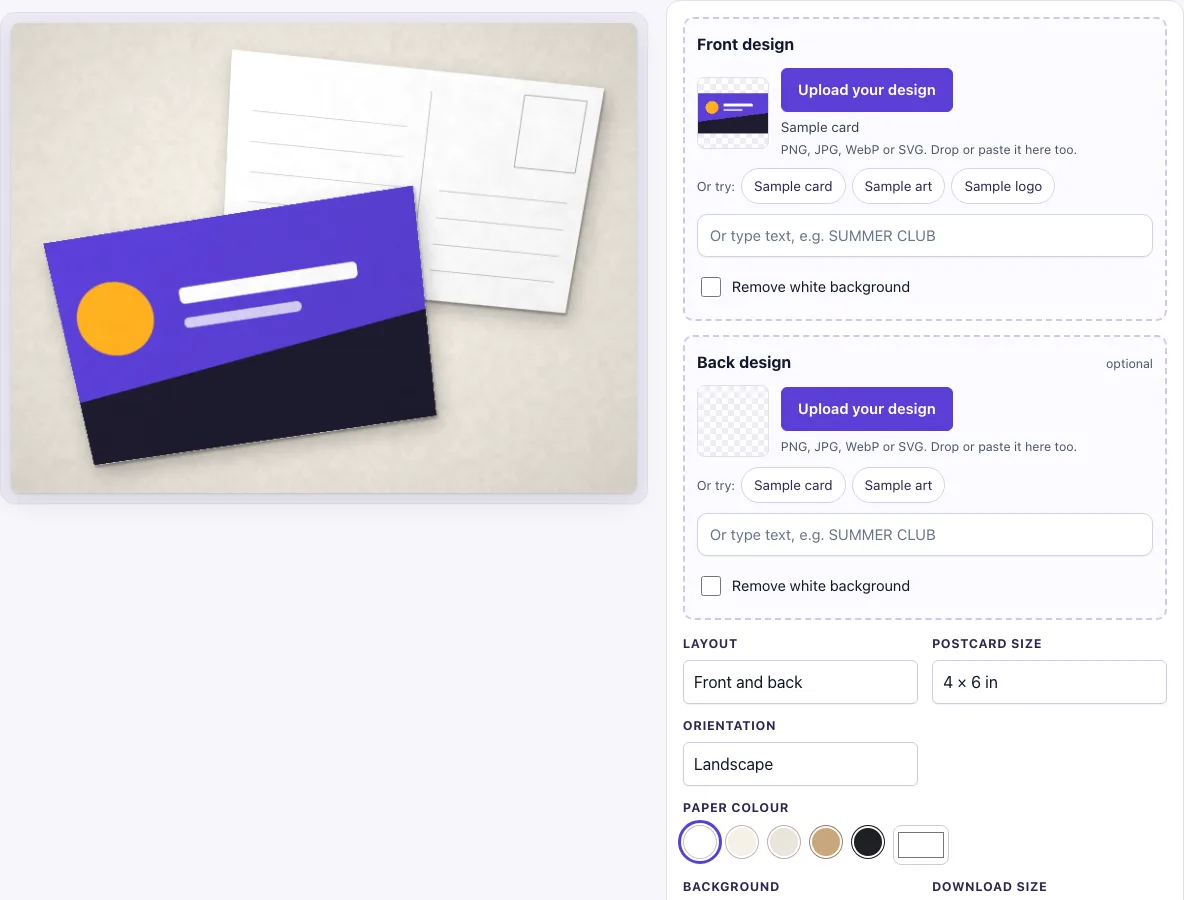
How to use the Postcard mockup
- In the Front design slot, click Upload your design, drop a file on the box, or paste an image. To skip uploading, type text in the text box, for example SUMMER CLUB.
- Optionally, add an image to the Back design slot. If you leave it empty, the tool draws a plain postcard back with a divider line, a stamp box and ruled address and message lines.
- Choose a Layout: Front and back, Front only or Stack of postcards.
- Choose a Postcard size: 4 × 6 in (the default), A6 (105 × 148 mm) or 5 × 7 in.
- Choose an Orientation: Landscape (the default) or Portrait.
- Pick a Paper colour from the White, Cream, Natural, Kraft or Black swatches, or use the colour picker for a custom colour.
- Pick a Background. It starts at Warm paper, and you can also choose Light concrete, Oak table, Dark slate, Linen, Sage, Blush or Studio white.
- If your design has a plain white background, check the Remove white background switch. It turns on by itself for uploads like that.
- Under Download size, choose Standard (1600 × 1200 px) or Large (2400 × 1800 px), then click Download PNG or Download JPG.
Your settings are kept in the page address. If you copy the link, it reopens the same layout, which is useful when you need to show the same mockup again later.
How to make a postcard mockup
To make a postcard mockup, upload your front design and let the tool place it on a card. The design fills the whole card face, and the scene adds the paper edge, soft contact shadows and light from the top left.
The scene is drawn by code, with no stock photos. Your design pixels are not redrawn or changed, so the artwork you see on the card is the artwork you uploaded.
What size is a postcard
A 4 × 6 in postcard measures 101.6 × 152.4 mm, and it is the default size here. A6 measures 105 × 148 mm. It is the ISO 216 size, one quarter of an A4 sheet. A 5 × 7 in postcard measures 127 × 177.8 mm and suits a larger card.
Postcard sizes vary between printers, so check the size your printer offers before you order. Choose the size in the tool that matches your print order, so the mockup shows the card you will actually receive.
Can I show the front and back of a postcard
Yes. Choose the Front and back layout. It shows the front card and the back card lying overlapped, with the back’s stamp box visible. Add a back design to show your own reverse side, or leave the slot empty to show the plain back.
If you only need the front, use Front only for one large card. Use Stack of postcards to show the front card on a small stack.
What file should I upload for a postcard mockup
Upload artwork that has the same ratio as your chosen postcard size and orientation. A 4 × 6 in postcard in landscape is 6 × 4 in, so use 1800 × 1200 px at 300 dpi.
Upload the artwork without bleed or crop marks. The mockup shows the trimmed postcard. Printers usually ask for about 1/8 in (3 mm) bleed on a print file, but that extra area is not needed here. The tool accepts PNG, JPG, WebP, GIF or SVG files. A transparent PNG shows the paper colour through its transparent parts.
Frequently asked questions
Is this postcard mockup free?
Yes. The tool is free, requires no sign-up, and has no paid option.
Can I use the mockup commercially?
Yes. You can use the images you download here to show and sell your own designs and products — in shop listings, ads, social posts and portfolios — with no credit required. You may not resell the blank scenes themselves as mockup templates or use them to run a similar service; see the terms.
Does the tool upload my design?
No. The tool runs in your browser, and the design file is never uploaded.
Why are the edges of my design cropped?
The design fills the whole card face using a cover fit. If its proportions differ from the card, the edges are cropped instead of the image being stretched. To avoid losing edges, match the ratio of your chosen size and orientation.
Can I type text instead of uploading an image?
Yes. Type your text into the text box in the Front design or Back design slot, for example SUMMER CLUB, instead of uploading a file.
Is the scene a photo?
No. The postcard, its shadow and the background are drawn by code in your browser, so there is no stock photo involved and the same settings always give the same picture.
Related tools
- Business card mockup: use it to show a business card design.
- Envelope mockup: use it to show an envelope design.
- Greeting card mockup: use it to show a greeting card design.
- Letterhead mockup: use it to show a letterhead design.
- Flyer mockup: use it to show a flyer design.
- Sticker mockup: use it to show a sticker design.
- Poster mockup: use it to show a poster design.