
Poster Mockup
Put your poster artwork in a frame on a wall and download the mockup.
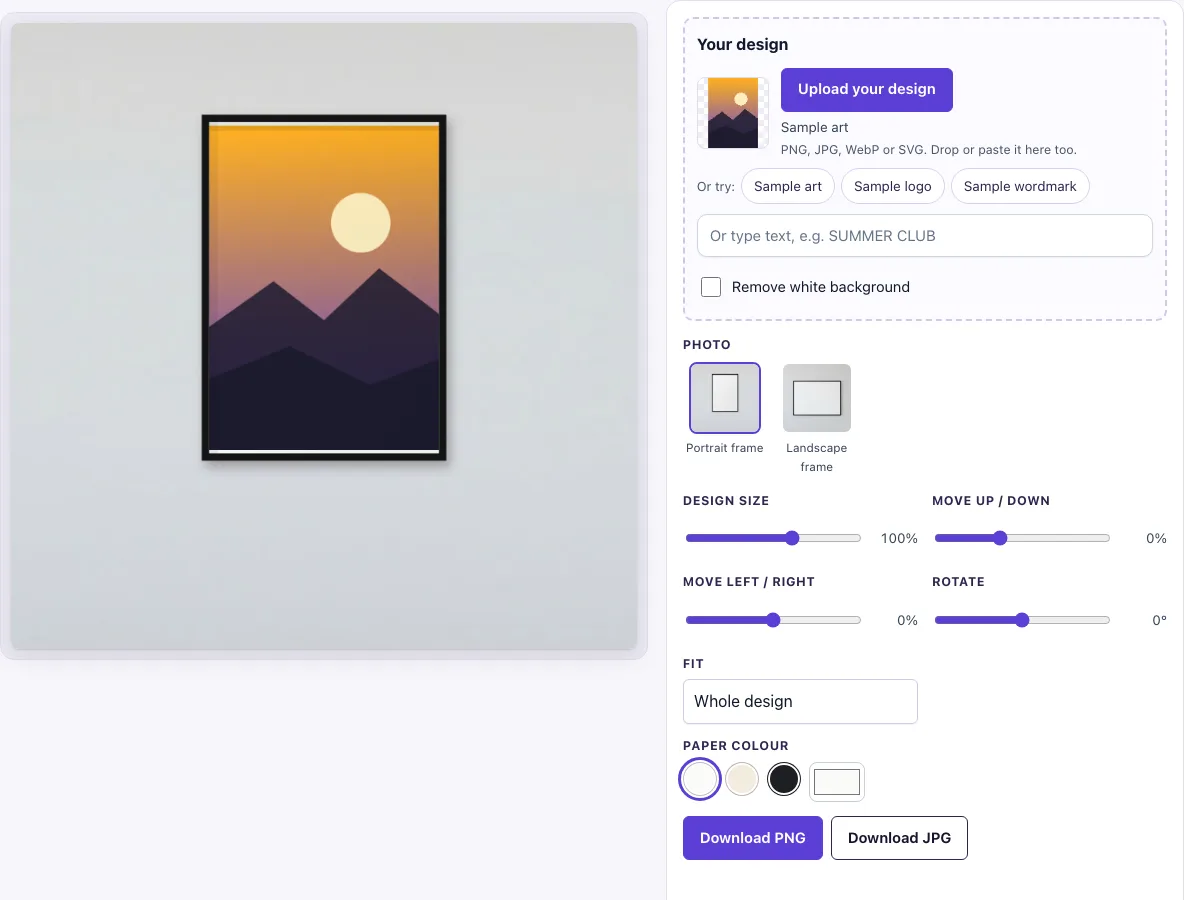
How to use the poster mockup
- Upload your design. Click “Upload your design” (PNG, JPG, WebP, GIF or SVG), drop a file on the box, or paste an image. You can also type words into “Or type text” to make a design, or try “Sample logo”, “Sample wordmark” or “Sample art”.
- Check the background. If your picture has a plain white background and no transparency, “Remove white background” switches on by itself. Turn it off if it removes parts of your artwork you want to keep.
- Choose a photo. Pick “Portrait frame” for A-series posters or “Landscape frame” for wider sheets.
- Set the fit. Choose “Whole design” to show the full artwork, or “Fill the paper” to cover the paper and crop the edges.
- Pick a paper colour. Choose White, Cream, Black or a custom colour.
- Place the design. Adjust “Design size” (default 100 %, the design fits the paper), “Move up / down”, “Move left / right” and “Rotate” (−45° to 45°).
- Download. Save the mockup as a PNG or JPG at 1024 × 1024 px.
Work through the steps in order. Fit and paper colour change how the design sits on the paper, so set them before you fine-tune the placement sliders. The mockup is an image for previews, so send your original print-ready file to the printer.
How to make a poster mockup
A poster mockup works by placing your artwork onto a picture of a framed sheet, so the paper shape and frame decide how the design looks. The main steps are matching the paper shape, choosing how the artwork fills the paper, and keeping the paper’s light on the result.
The portrait frame’s paper is about 1 : 1.44, which is close to the ISO A-series ratio of 1 : 1.414, so an A-series poster fits it well. The landscape frame’s paper is about 1.40 : 1. Choosing the frame that matches your poster stops the design from looking stretched.
“Whole design” keeps every part of the artwork visible, and the paper colour fills any gap. “Fill the paper” makes the artwork cover the sheet, which removes gaps but crops the edges. Use “Whole design” when text or borders sit near the edge of your file.
The tool also keeps the paper’s own light. The inner shadow of the frame and the soft gradient on the paper are multiplied over your artwork, so the design looks printed on paper behind the frame rather than pasted on top.
What size is an A2 poster
An A2 poster measures 420 × 594 mm. It belongs to the ISO 216 A-series, where the long side is about 1.414 times the short side (a 1 : √2 ratio). Each size in the series keeps this ratio: A4 is 210 × 297 mm, A3 is 297 × 420 mm, and A2 is 420 × 594 mm.
US poster sizes do not follow this ratio. An 18 × 24 in poster is 3:4, and a 24 × 36 in poster is 2:3. If you use one of these with “Whole design”, you will see a gap of paper colour around the artwork. With “Fill the paper”, the edges of the design will be cropped. For A-series sizes, use the portrait frame.
How do I make the poster look right on the wall?
Match the frame to your artwork: a portrait poster in the portrait frame, a landscape print in the landscape frame. If your file has a white border built in, choose Whole design and White paper so the border blends into the paper instead of showing a second edge.
Frequently asked questions
Is it free?
Yes. Everything on this page is free, and there is no paid option.
Is my design uploaded?
No. The mockup is made in your browser tab, and the design file is never uploaded. You can make a mockup without creating an account.
Can I use it commercially?
Yes, for your own designs and products. You can use downloaded images to show and sell your work in shop listings, ads, social posts and portfolios, with no credit required. You may not resell the blank photos as mockup templates.
Is there a poster mockup PSD file?
No. The tool downloads a flat PNG or JPG at 1024 × 1024 px, not a layered PSD file. You can still change the look by adjusting the frame, fit, paper colour and placement before you download.
What file types can I upload?
You can upload PNG, JPG, WebP, GIF or SVG files. Transparent PNGs and SVGs keep their edges clean, and you can also paste an image straight into the “Your design” box.
Can I change the frame or the wall?
Not on this page: both photos show a thin black frame on a light grey wall. For other frame colours, mats and walls, use the picture frame mockup.
Related tools
- Picture frame mockup: use it when you want to show artwork in a frame that is not a poster.
- Flyer mockup: use it to preview a single-sheet flyer for events or promotions.
- Magazine mockup: use it to show a cover or spread in print-style layouts.
- Business card mockup: use it to show a card design in a clean, small-format preview.
- Postcard mockup: use it to present a postcard design for mailings or shop listings.
- T-shirt mockup: use it to place your artwork on a shirt for merchandise previews.
- Newspaper ad mockup: use it to show an advert on a newspaper page.
- Sign mockup: use it to show a design on a sign.