
Sign Mockup
Upload your sign design, choose the shape, panel and wall, and download a realistic mockup image.
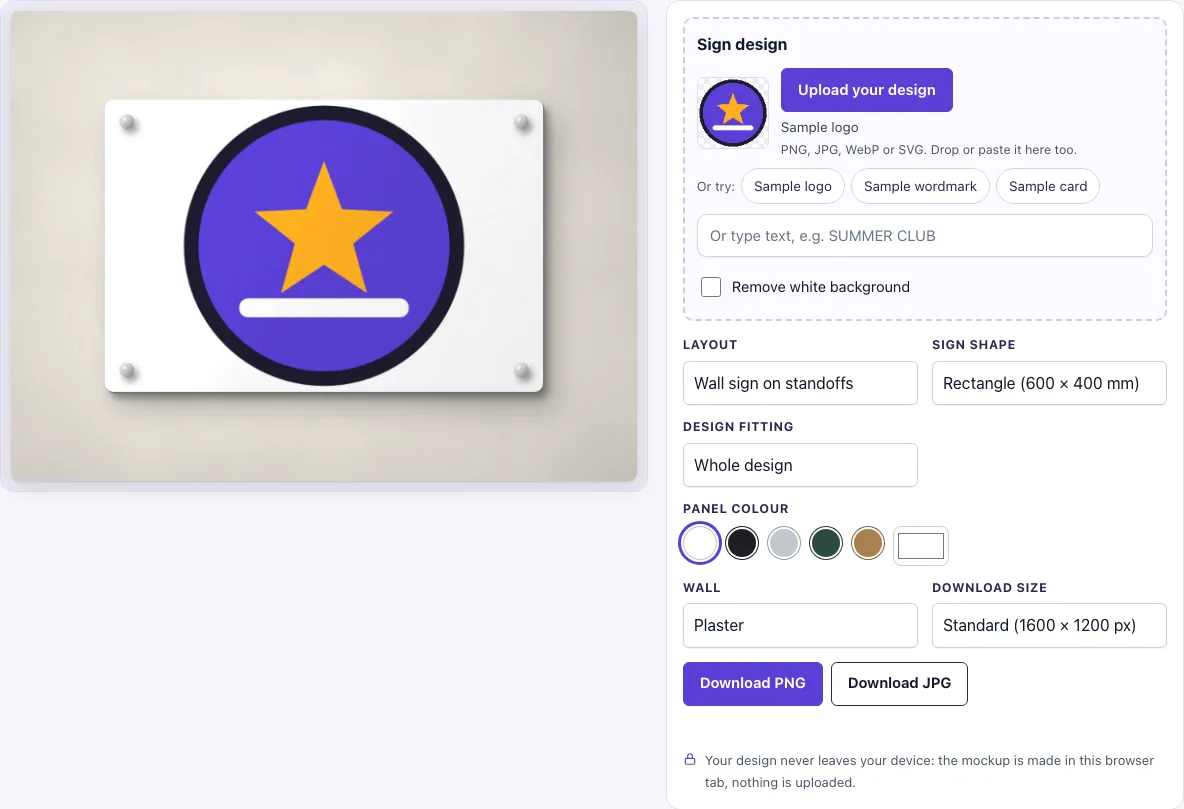
How to use the Sign mockup
- Add your design. Click Upload your design, drop a file on the box, or paste an image. You can also click Sample logo, Sample card or Sample art to try the tool, or type text in the text box instead of uploading.
- Check the Remove white background switch. It turns on automatically when an uploaded image has a plain white background and no transparency. Turn it off if you want the white to stay.
- Choose a Layout: Wall sign on standoffs or Hanging blade sign.
- Choose a Sign shape: Rectangle (600 × 400 mm), Square (500 × 500 mm) or Round (500 mm).
- Choose a Design fitting: Whole design (the default) or Fill the paper.
- Choose a Panel colour: White, Black, Aluminium, Dark green, Oak, or a custom colour.
- Choose a Wall: Plaster, Concrete, Brick, Dark slate, Sage paint or Blush paint.
- Choose a Download size: Standard (1600 × 1200 px) or Large (2400 × 1800 px). Then click Download PNG or Download JPG.
Your settings are kept in the page address. If you copy the link, it reopens the same picture, and the same settings always produce the same image.
Tip: use Whole design for a logo so nothing is cropped, and Fill the paper for artwork meant to cover the whole panel. A transparent PNG shows the Panel colour behind it, so try White, Black or Aluminium before you download.
How to make a sign mockup
A sign mockup places your artwork onto a drawn picture of a sign, so the result looks like a real installation without printing anything. The tool adds the scene around your design: the panel, the wall, the shadow and the light. Your design pixels are not changed, so the artwork you upload is the artwork you see.
How to show a hanging blade sign
A blade sign hangs from a wall bracket, held by a brace and hangers, and it sticks out from the wall so it can be read from the side. To show one, set Layout to Hanging blade sign. The bracket, brace and hangers are drawn for you, so you only need to pick the shape, colour and wall.
What file should I upload for a sign mockup
Upload a PNG, JPG, WebP, GIF or SVG file. A logo with a transparent background works best, because the panel colour shows through the empty areas. If your file has a solid white background and no transparency, the Remove white background switch handles it for you. A sharper, larger file gives a crisper result on the download.
What sizes are the signs
The three shapes are drawn at fixed proportions: a rectangle at 600 × 400 mm, a square at 500 × 500 mm and a round sign at 500 mm across. These are the proportions shown in the picture, not an industry standard. Real signs vary in size, so confirm dimensions with your sign maker before you print or order.
Wall sign or blade sign?
A wall sign on standoffs sits flat against the wall, held off it by four caps, so it is seen face-on and suits shopfronts, offices and entrances. The picture shows it straight on, with a shadow falling down and to the right because the panel stands off the wall. A blade sign projects from the wall on a bracket and is read from the street at an angle, so choose it when you want to show a hanging shop sign. Both layouts use the same design, shape, panel colour and wall options, so you can make one picture of each from a single upload.
Frequently asked questions
Is this sign mockup free?
Yes. The tool is free to use, and there is no sign-up and no paid option.
Can I use the mockup commercially?
Yes. You can use the images you download here to show and sell your own designs and products — in shop listings, ads, social posts and portfolios — with no credit required. You may not resell the blank scenes themselves as mockup templates or use them to run a similar service; see the terms.
Why does my logo have a white box around it?
Your file probably has a solid white background instead of transparency. Turn on the Remove white background switch, which runs automatically for plain white backgrounds. For the cleanest result, use a PNG or SVG with a transparent background.
Can I share my mockup with someone else?
Yes. Copy the page address after you set your options, and it reopens the same picture for the person you send it to. Your design file is not uploaded, so you will need to send the design separately if they need it.
Does the tool upload my design file?
No. The tool runs in your browser, so your design file is never uploaded and nothing is sent to a server.
Is the scene a photo?
No. The sign, its wall, its shadow and the background are drawn by code in your browser, so there is no stock photo involved and the same settings always give the same picture.
Related tools
- Poster mockup: use it to show artwork on a framed or wall-hung poster.
- Picture frame mockup: use it to display a print inside a frame on a wall.
- Flyer mockup: use it to show a printed flyer or leaflet design.
- Newspaper ad mockup: use it to preview an advert laid out on a newspaper page.
- Menu mockup: use it to present a menu design on a table or card.
- Sticker mockup: use it to show a sticker design applied to a surface.
- Hang tag mockup: use it to show a design on a hang tag attached to a product.
- Business card mockup: use it to show a card design on a table or surface.