
Sticker Mockup
Upload your design, choose the shape, border and scene, and download a realistic sticker mockup image.
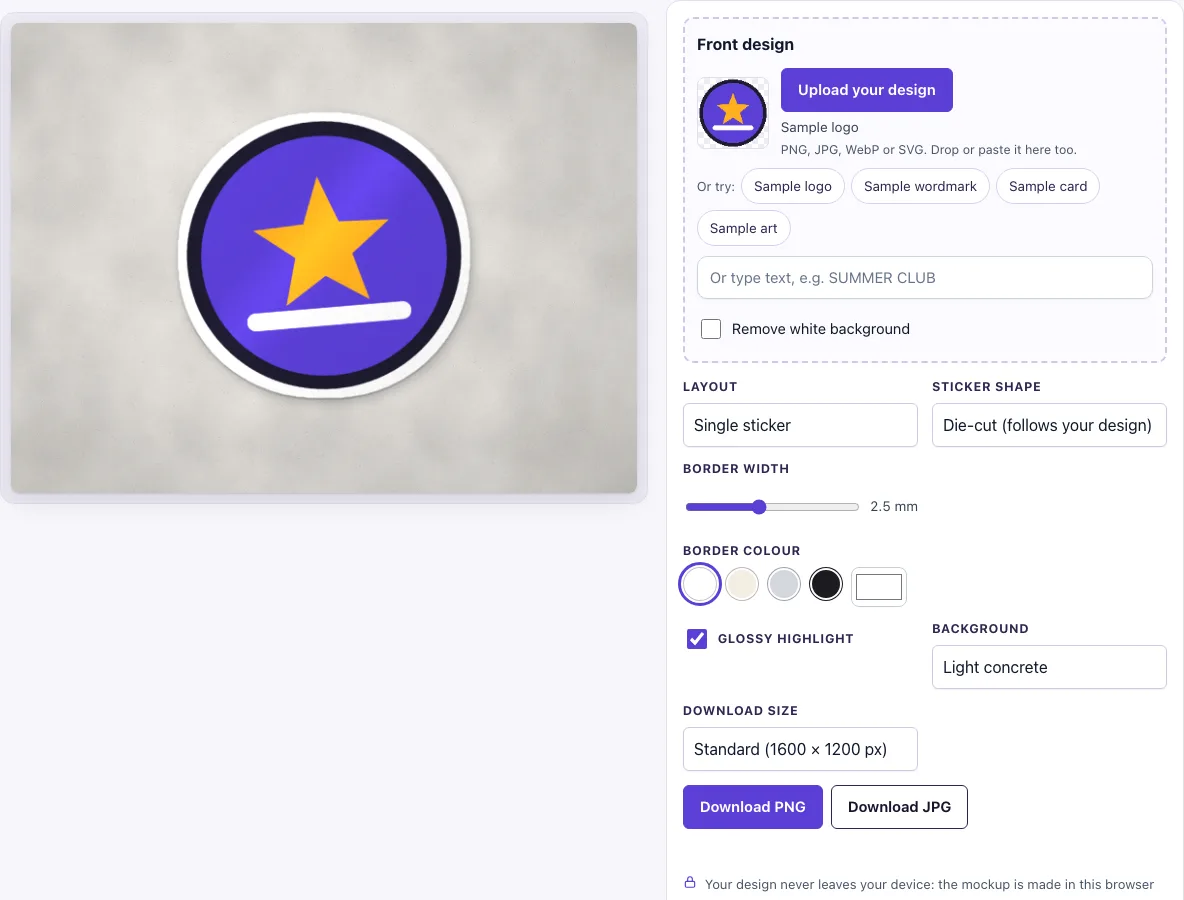
How to use the Sticker mockup
- Open the Front design slot. Click “Upload your design”, drop a file on the box, or paste an image. To skip uploading, type text in the text box (for example, SUMMER CLUB), or click a sample button such as “Sample logo” to test the tool first.
- If your image has a plain white background, check that “Remove white background” is on. It may switch on by itself.
- Choose a Layout: “Single sticker”, “Sticker sheet” or “On a laptop lid”.
- Choose a Sticker shape. “Die-cut (follows your design)” is the default and needs a transparent PNG or SVG.
- Set Border width with the slider, from 0 to 6 mm (the default is 2.5 mm).
- Pick a Border colour: White, Cream, Silver or Black, or a custom colour from the colour picker.
- Switch “Glossy highlight” on for a shiny look or off for a matte look.
- Pick a Background. This option is not used on the laptop lid layout.
- Choose a Download size, Standard (1600 × 1200 px) or Large (2400 × 1800 px), then click “Download PNG” or “Download JPG”.
The settings are kept in the page address, so you can copy the link to reopen the same layout. The preview and the download are the same picture, so what you see is what you save.
What is a die-cut sticker?
A die-cut sticker is cut along the outline of its artwork, so its shape follows the design rather than a plain circle or square. The printed pixels define the edge of the sticker. The Die-cut (follows your design) option in this tool works the same way: opaque pixels become the sticker, and a border is added around that outline. Because the outline comes from transparent and opaque areas, the design needs a transparent background. If your design is a solid rectangle, the die-cut sticker will be rectangular too. Die-cut shapes suit logos, mascots and illustrations with irregular edges.
How to make a sticker mockup that looks real
Start with the border. A visible border makes the image read as a sticker, while a border of 0 mm shows none. For Circle, Square and Rectangle, the design fills the whole printed face using a cover fit, so edges may be cropped if the proportions differ. Transparent parts of the design show the border colour, so choose that colour with care.
Light and shadow help the result look physical. The scene adds soft contact and ambient shadows, light falling from the top left, and a fine paper grain. Your design pixels are not redrawn or changed. The glossy highlight adds a soft diagonal streak; turn it off if you want a matte finish.
Check contrast against the background. A white sticker on a pale background can lose its edge, so try a darker option such as Dark slate or Oak table to see the outline more clearly.
How wide should the border be?
The border starts at 2.5 mm in white. Drag the Border width slider towards 6 mm for a thicker outline, or down to 0 mm to see the design on its own. The Border colour changes the edge: Black gives a bold outline, while Silver and Cream suit softer designs. For Circle, Square and Rectangle the border is a frame around the printed face, and for the die-cut shape it follows the outline of your artwork.
Frequently asked questions
Is this sticker mockup free?
Yes. There is no paid option and no sign-up.
What file should I upload for a sticker mockup?
You can upload PNG, JPG, WebP, GIF or SVG files. For a die-cut sticker, use a PNG or SVG with a transparent background, because the outline is drawn from the opaque pixels. If your file is a JPG or has a white background, leave “Remove white background” on to make near-white pixels transparent.
Can I use the mockup commercially?
Yes. You can use the images you download here to show and sell your own designs and products — in shop listings, ads, social posts and portfolios — with no credit required. You may not resell the blank scenes themselves as mockup templates or use them to run a similar service; see the terms.
Is my design uploaded?
No. The tool runs in your browser, and the design file is never uploaded.
Can I make a sticker sheet mockup?
Yes. Choose “Sticker sheet” to show six round or square stickers, or four rectangles, on a light backing sheet drawn at A5 landscape (210 × 148 mm).
Is the scene a photo?
No. The sticker, its shadow and the background are drawn by code in your browser, so there is no stock photo involved and the same settings always give the same picture.
Related tools
- Hang tag mockup: use it to show a hang tag design.
- Lanyard and ID badge mockup: use it to show a badge or lanyard design.
- Business card mockup: use it to show a business card design.
- Flyer mockup: use it to show a flyer design.
- Poster mockup: use it to show a poster design.
- Letterhead mockup: use it to show a letterhead design.
- Postcard mockup: use it to show a postcard design.